

On this page3 sections
GitHub Copilot can now operate desktop applications when the work has no suitable command-line, API or Model Context Protocol interface. The October 1 release puts computer use in public preview in the existing Copilot app and Copilot CLI on macOS and Windows. The new capability is desktop interaction, rather than a launch of the app itself.
That can matter for the administration console that never acquired a useful API. A platform engineer may finally be able to delegate a small GUI task instead of describing every click. The task still needs a clear application, record and intended operation, plus a way to check the result where it was saved.
How Copilot reaches the interface
GitHub's concept reference describes a combination of accessible application content, visual context and UI interaction. It also records limitations: an agent can select the wrong control, lose its place when a window changes or repeat an action. A structured API or command-line tool remains preferable where one is available, because it gives the task a more explicit input and response than locating controls on a changing screen.
Computer use is disabled by default. In the app, it runs in local sessions and is enabled under Settings, Computer Use; on macOS, the system also requires Accessibility and Screen Recording permissions. The feature does not turn a cloud coding session into a desktop operator, and the announced platform scope does not include Linux.
The CLI instructions use /computer on to enable the bundled integration and /computer show to inspect it. Managed subscribers also depend on their organization's CLI policy. A local preference cannot override that policy, so a missing capability needs an eligibility and configuration check before it is treated as an agent failure.
Before the console exercise, /computer show reports the bundled plugin, MCP server and associated skills; /permissions show reveals the active CLI permission mode. If computer use is enabled but does not work, GitHub’s troubleshooting instructions point to /plugin and /mcp list to inspect the integration and its connection. These checks help separate a setup problem from a failure to select the intended record.
A test console with a known record
Try it first with a record whose answer you already know. In this hypothetical exercise, Copilot opens a GUI-only test console and inspects an incident record with a known identifier and synthetic data. Compare the application, selected record and reported status with that target. You learn whether the assistant can stay on the intended object before asking it to change anything.
A later test could allow a bounded update to that record. Our agent-action approach treats approval as permission for a particular action against a defined state. Here, that means specifying the test record and intended change, then checking the destination's actual state. Permission to operate the console alone cannot establish that the agent selected the right record or completed the update.
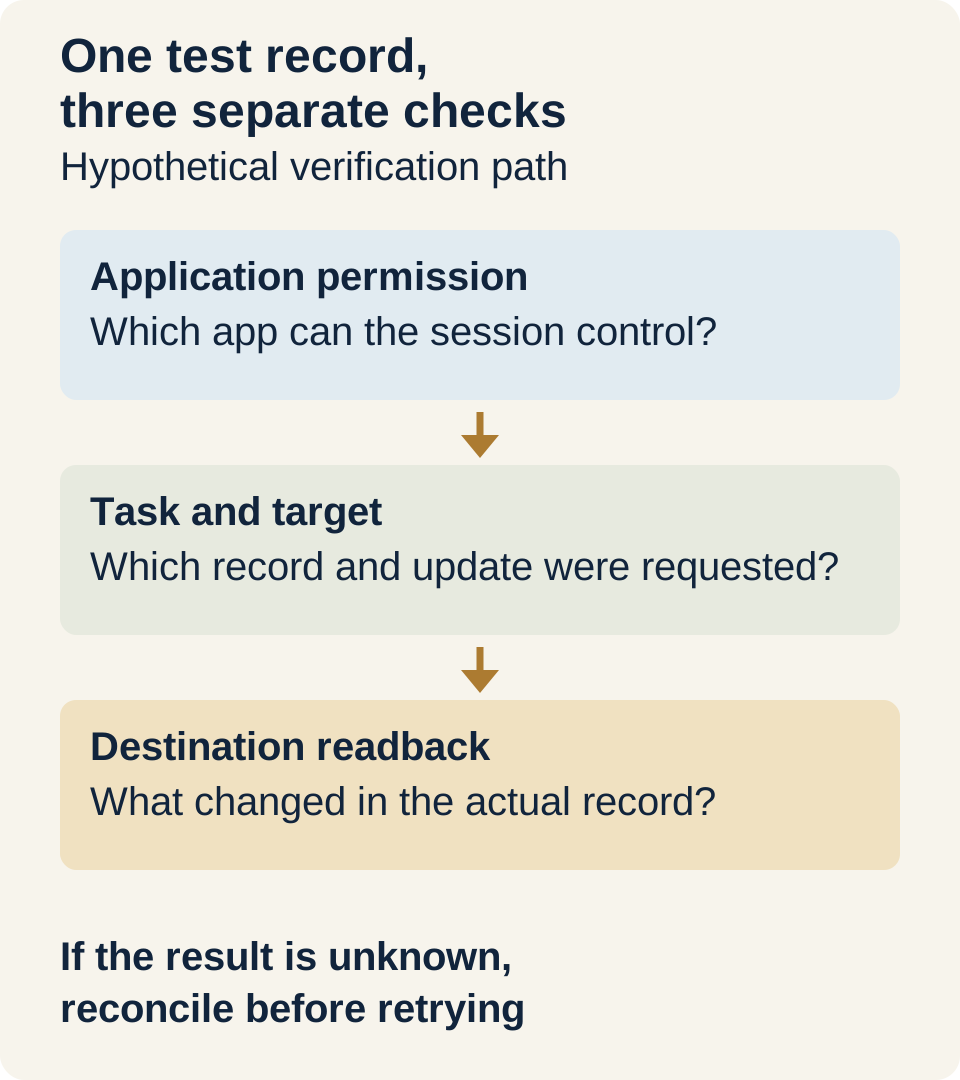
A lost response after a click creates an awkward possibility: the console may have saved the update just before the assistant stopped. Open the record and inspect its state before requesting the same change again. If the console cannot establish the result, leave it unresolved and return the operation to a person. Repeating the click would create another action, not answer the question about the first.
Stopping work and ending access
The app instructions distinguish stopping an operation from ending its session. Stop or Esc interrupts current work; ending the session revokes application access granted to that session. Removing a saved application approval affects future sessions, including the app and CLI on that machine, but does not revoke access already granted to a running session.
Approval prompts depend on the active tool-permission settings or CLI permission mode. Saved approvals and managed deny rules also affect what can run, so the preview should not be described as requiring a fresh confirmation for every individual UI action. Review the mode and approved applications before a test, then use the control that actually matches the goal: interrupt the operation, end the session's access, or remove future approval.
For the legacy-console team, the first useful result is straightforward: Copilot finds the intended record, any permitted edit can be read back from it, and the session’s application access can be ended. That gives the preview a concrete place in the workflow. The ability to reach a button is the start of the experiment; the saved state tells you whether the work finished.
Source context
Source links appear within this article. Read them alongside the author’s analysis and evaluate the guidance against your environment.
Report an error or outdated detail