

On this page6 sections
You learn more from a Linux command when you can inspect what it changed, try something different and recover without worrying about an important machine. A small virtual machine gives this series a place to do that. You will keep the same lab as you learn files, processes and services, then use those pieces to investigate a broken service.
By the end of this lesson, you will have an Ubuntu shell, know which machine and user you are working as, and have a small record that survives a shutdown and restart. You will not install a web service yet; first, you need to recognize where your commands run and where your work is stored.
Give the practice system its own machine
This course uses Ubuntu 24.04 in Multipass, Canonical’s tool for managing Ubuntu virtual machines. A virtual machine runs a guest operating system on your existing computer, called the host. The guest has its own Linux kernel, users and filesystem. This lets later lessons use normal service-management tools without changing your host’s service configuration.
A container is useful for many kinds of work, but it shares a host kernel and can have a different service environment. That would introduce exceptions before we have explained what a normal Linux service looks like. A small Ubuntu VM keeps the course’s exercises consistent. It is still software on your computer, rather than a guarantee against every kind of security problem, so use synthetic files and leave host-directory sharing unconfigured.
You will need permission to install Multipass, a working internet connection for the Ubuntu image and enough spare resources for a guest with two virtual CPUs, 2 GB of memory and an 8 GB virtual disk. Those are this lab’s allocations, not the installer’s total disk requirement. Leave additional space for the download and host-side files. This is a command-line lab; no Linux desktop is required.
Install Multipass using Canonical’s instructions for your operating system. That page gives the current installation prerequisites and official download route. On a managed work computer, use your approved installation process. If virtualization is unavailable, use a disposable Ubuntu 24.04 VM supplied by your training environment; establish access through its instructions before continuing at “Check where you are.” Cloud instances can incur charges, so a local lab is the default here.
Create the lab from your host terminal
Open Terminal on macOS or Linux, or PowerShell on Windows. These commands run on your existing computer, outside the guest:
multipass version
multipass launch 24.04 -n linux-basics -c 2 -m 2G -d 8G
multipass list
The first command checks that the client is available. The second requests the Ubuntu release, names the machine linux-basics and assigns its resources. The last command shows the instances Multipass manages. Find linux-basics and confirm that its state is Running; addresses and the exact display format can vary.
The first launch downloads an image and initializes the guest, so allow it to finish. If the command reports that the name already exists, inspect multipass list rather than creating another machine. A stopped lab can be started with multipass start linux-basics. If the client is not found, return to the installation instructions and confirm that it is available in your terminal before troubleshooting Ubuntu.
Enter the guest with:
multipass shell linux-basicsThe terminal now accepts commands inside Ubuntu. The terminal application has not changed, but the shell it is talking to has. That distinction is easy to lose once several terminal windows are open, so check it directly.
Check where you are
Run these commands inside the guest, one at a time:
hostname
whoami
uname -s
cat /etc/os-release
pwd
hostname reports the guest’s hostname, while whoami reports your effective user. In this lab, you will ordinarily see linux-basics and ubuntu. uname -s reports the kernel name, which should be Linux. The release file identifies Ubuntu and its version; pwd prints the current directory, normally /home/ubuntu in a new session.
These commands answer different questions. The kernel name identifies the operating-system kernel, while the release file identifies the distribution around it. The hostname identifies the machine, and the user determines the account under which your shell operates. Knowing all three helps you notice that you are about to work on the wrong host or with unexpected privileges.
If the kernel name is Darwin, you are still in a macOS shell. Enter the Multipass guest before continuing. If you are using an alternative training VM, your hostname, username and home directory may differ; verify them against that environment instead of trying to make its output match this lab.
Make a small record you can recognize
The course project will eventually become a small HTTP service. For now, create a directory for its practice files and record the lab’s purpose:
mkdir -p "$HOME/linux-basics"
printf '%s\n' 'Purpose: practice operating a small service.' > "$HOME/linux-basics/lab-record.txt"
cat "$HOME/linux-basics/lab-record.txt"
$HOME expands to your home directory inside the guest. The quotes keep the expanded path together as one argument. mkdir -p creates the directory if needed. printf produces the text, and > sends that output into the named file instead of displaying it in the terminal.
Redirection with > replaces an existing file’s contents. Here the target is a practice file with a known name; do not substitute an important file. Running this same example again replaces the record with the same single line. Later lessons will cover appending, editing, backups and comparing a changed configuration with its original.
The final command should print:
Purpose: practice operating a small service.If it reports that the file does not exist, inspect pwd and repeat the cat command with the complete $HOME path shown above. The lesson’s commands use that path so they do not depend on the shell’s current directory.
Stop the lab and prove your work remains
Leave the guest shell:
exitYou are back in the host terminal. Stop the named lab, inspect its state, then start and enter it again:
multipass stop linux-basics
multipass list
multipass start linux-basics
multipass shell linux-basics
Stopping the VM shuts down the running system while retaining its disk. After entering it again, check the record:
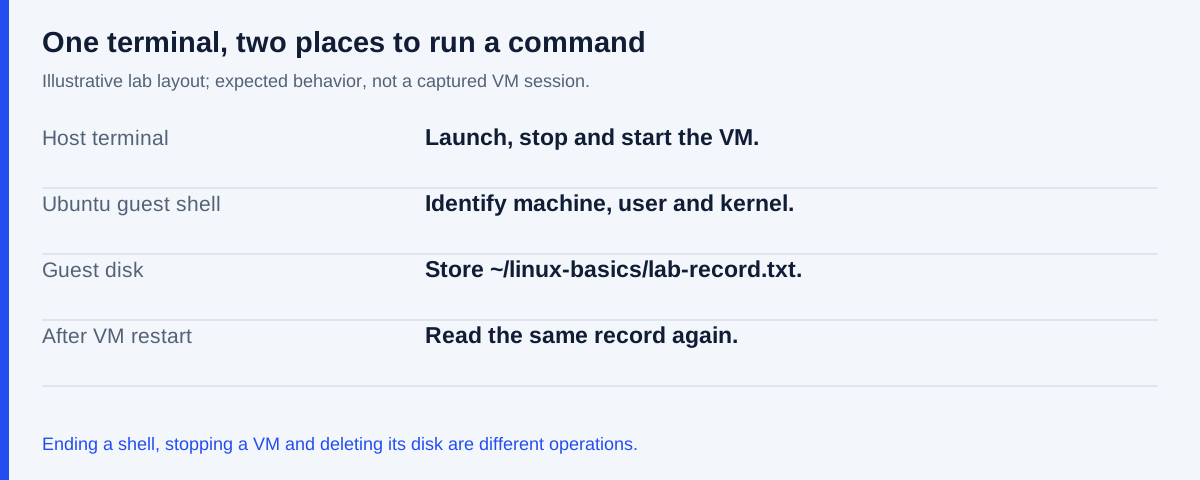
cat "$HOME/linux-basics/lab-record.txt"The same line should still be there. You have now distinguished a shell session, a running machine and the files stored on its disk. Closing a shell ends that session; stopping the guest ends its running processes; neither operation is the same as deleting its stored files.
If the record is missing, check hostname and whoami before recreating it. A different guest or user can put you in a different home directory. That is a more useful first question than assuming that Linux lost the file.
Keep the lab for the remaining lessons. When you finish today, use exit and stop linux-basics from the host again. The next lesson starts with reading a command and finding help, using this same environment.
Sources and verification scope
The VM setup and lifecycle commands were checked against Canonical’s launch, shell, stop and start documentation. Linux kernel background is available in the kernel documentation. The user and kernel-name checks follow the Ubuntu manuals for whoami and uname. The lab record is constructed course material. Its directory, write and read commands were run twice in a disposable local directory, producing the expected single line. All seven shell blocks passed a syntax check. These checks do not establish VM behavior. The VM procedure was documentation-reviewed, not executed across the supported host platforms during preparation; output values above are expected results rather than captured sessions.
Sources & context
Sources linked in this article. Read alongside the author’s analysis; a citation does not independently verify a publisher’s claims.
- Canonical’s instructions for your operating systemcanonical.com
- launchcanonical.com
- shellcanonical.com
- stopcanonical.com
- startcanonical.com
- kernel documentationwww.kernel.org
- whoamimanpages.ubuntu.com
- unamemanpages.ubuntu.com