

On this page5 sections
Put quotes around *.log, and a command that listed two filenames can suddenly print an asterisk. The program has not become confused. You changed what the shell handed to it.
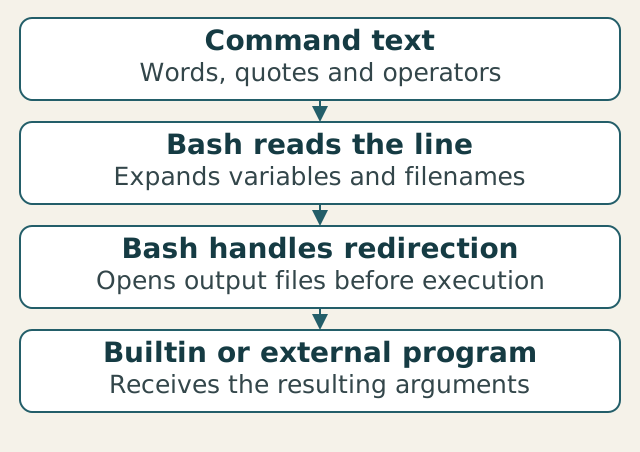
That small distinction explains a surprising amount of terminal behavior. Before a command runs, the shell reads the line, expands some expressions and handles instructions such as sending output to a file. The command then works with what it receives. In this lesson, you will make those steps visible and use the right help page to predict the result.
Continue in the disposable Ubuntu VM from lesson 1. Keeping the exercises inside that VM preserves the consistent Linux environment chosen for this course and keeps your host configuration out of the experiment. From your host terminal, enter the existing lab with multipass shell linux-basics; if it is stopped, run multipass start linux-basics first. The remaining commands run inside Ubuntu, using Bash and GNU utilities.
What reaches the command?
Start with a command that inspects an existing file:
ls -l -- /etc/hostsls lists information about files. Here, -l requests the long format, -- ends option processing, and /etc/hosts is the file to inspect. The result is one line of metadata, including permissions, ownership and size. The exact values depend on your VM. This does not display the file’s contents or edit it.
The words after the command name are its arguments. Some arguments select behavior; others name the thing to work on. ls understands its own options, so a flag you learn here does not automatically mean the same thing to another program. Its -- marker is useful when a filename might begin with a hyphen, but check an unfamiliar command’s documentation before assuming it supports that convention.
Which help page describes what runs?
A command name does not always refer directly to a program on disk. Ask Bash how it resolves these two names:
type ls
type printf
You may find that ls is an alias, a shortcut that adds options to another command, while printf is a builtin supplied by Bash itself. Your shell can also define functions under familiar names. Read the actual result: a path such as /usr/bin/ls identifies an external program, while “shell builtin” points you to Bash’s documentation.
For the builtin, use help printf. For GNU ls, use its own help or its manual page:
help printf
ls --help
man ls
The manual’s synopsis compresses the command’s accepted form into a short line. Square brackets usually mark optional pieces; they are not characters you should type around an option. You do not need to read the entire page to answer one question. In the usual pager, type /--directory and press Enter to search, use n for the next match, then q to leave.
The description of -d, also written --directory, says to list a directory itself rather than its contents. That changes the meaning of ls -ld -- /etc: it reports metadata for /etc, rather than enumerating the files inside it. By comparison, -a includes names beginning with a dot when listing contents. The letters are easy to memorize incorrectly; the description tells you which behavior you need.
If a minimal Ubuntu image lacks man or its pages, ls --help and the GNU listing manual provide another route. Missing documentation is a reason to use another reference, not to run a guessed option.
Make expansion visible
This illustrative exercise uses three empty practice files. First, prepare a dedicated directory:
mkdir -p "$HOME/aiopssre-lab/lesson-02"
cd -- "$HOME/aiopssre-lab/lesson-02"
pwd
Check that pwd ends in /aiopssre-lab/lesson-02. If either earlier command failed, stop and fix that before continuing. The next commands create or empty the three named practice files, so keep unrelated files out of this directory:
printf '' > alpha.log
printf '' > beta.log
printf '' > notes.txt
printf prints according to a format string, which tells it how to present its remaining arguments. An empty format prints nothing. The > operator asks Bash to send that output to a file, creating the file or truncating its existing contents. The shell opens that destination before running the command; the filename is not an argument to printf.
Now give printf a format that puts angle brackets around each string and a newline after it:
printf '<%s>\n' *.log%s inserts one string and \n starts a new line. The format repeats for the supplied strings. With the two practice log files present, the output is:
<alpha.log>
<beta.log>
Bash found the matching filenames and supplied them as two arguments. printf never searched the directory. Add single quotes around the pattern and compare:
printf '<%s>\n' '*.log'This time the output is <*.log>. Single quotes preserve the pattern as one literal string, so Bash does not expand it. If your first command showed additional names, inspect the directory for files from an earlier attempt; the pattern matches all names ending in .log, not just the two created above.
A quoted path can still use a variable
Single and double quotes solve different problems. Compare these commands:
printf '<%s>\n' '$HOME'
printf '<%s>\n' "$HOME"
The first prints <$HOME>. In the second, Bash replaces $HOME with your home-directory path. Double quotes allow that replacement while keeping the resulting path together as one argument, even if it contains spaces. That is why the directory commands earlier used double quotes around their paths.
The Bash manual covers these quoting and expansion rules in detail. Here, the useful habit is to ask which characters Bash will interpret and which strings the command will actually receive.
Read one command without running it first
Explain ls -ld -- "$HOME/aiopssre-lab/lesson-02" before pressing Enter. Identify the variable Bash replaces, the number of path arguments passed to ls and whether the result should contain alpha.log.
Check the prediction
Bash expands $HOME and passes one quoted directory path. The combined -l and -d options ask for a long listing of that directory itself, so the result should be one metadata line for lesson-02, not a list containing alpha.log. Look up -d, run the command and compare the result with your explanation.
You now have a way to investigate a command instead of guessing at it: ask Bash what the name resolves to, find the documentation for that implementation and work out its arguments after expansion. This lesson checks command reading in Bash with GNU utilities; it does not make an unfamiliar command safe on another system. Keep using the same VM as the course moves into files and directories.
Sources & context
Sources linked in this article. Read alongside the author’s analysis; a citation does not independently verify a publisher’s claims.
- GNU listing manualwww.gnu.org
- Bash manualwww.gnu.org